Explore at your own pace
Scan a drive or folder. Pause, resume or cancel the scan whenever you need.
 WIMS
WIMSWIMS · WHERE IS MY SPACE?
Understand what takes up your disk. Explore folders, find large files and decide what to keep.
Download on Microsoft StoreFor Windows 10 (2004 or later) and Windows 11 · x64
WHERE IS MY SPACE?
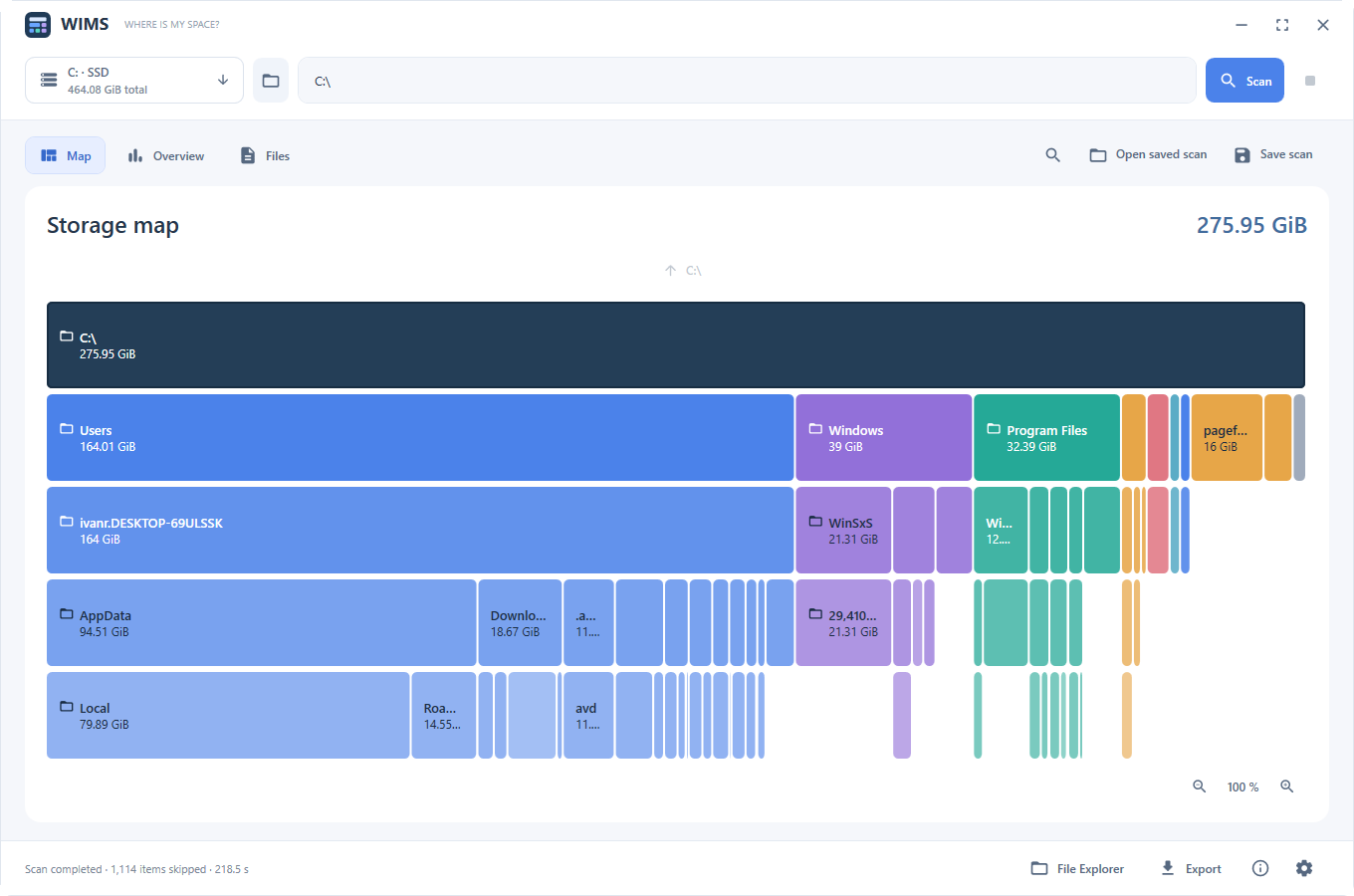
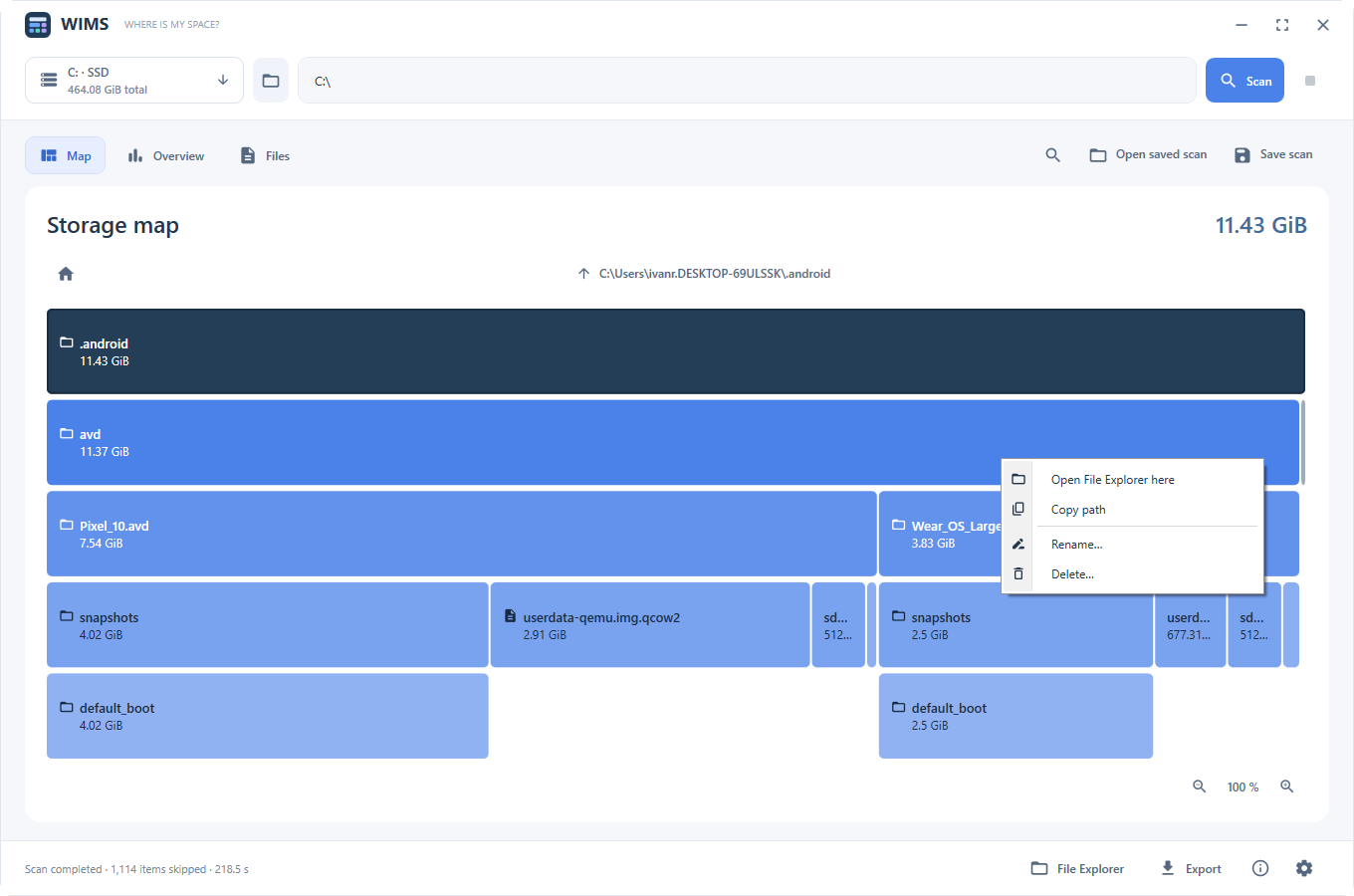
Each row goes one level deeper into the folders. Subdivisions stay within their parent folder’s space: a wider block means a larger logical size. Gaps appear when a branch has no further levels to show.
Scan a drive or folder. Pause, resume or cancel the scan whenever you need.
Browse highlighted files and a breakdown by extension, with file counts and sizes.
Save .wims scans and open them even when the drive is disconnected. Export data to CSV.
INSIDE WIMS
Start with the map, then explore the overview or file details depending on what you want to discover. Each view answers a different question.
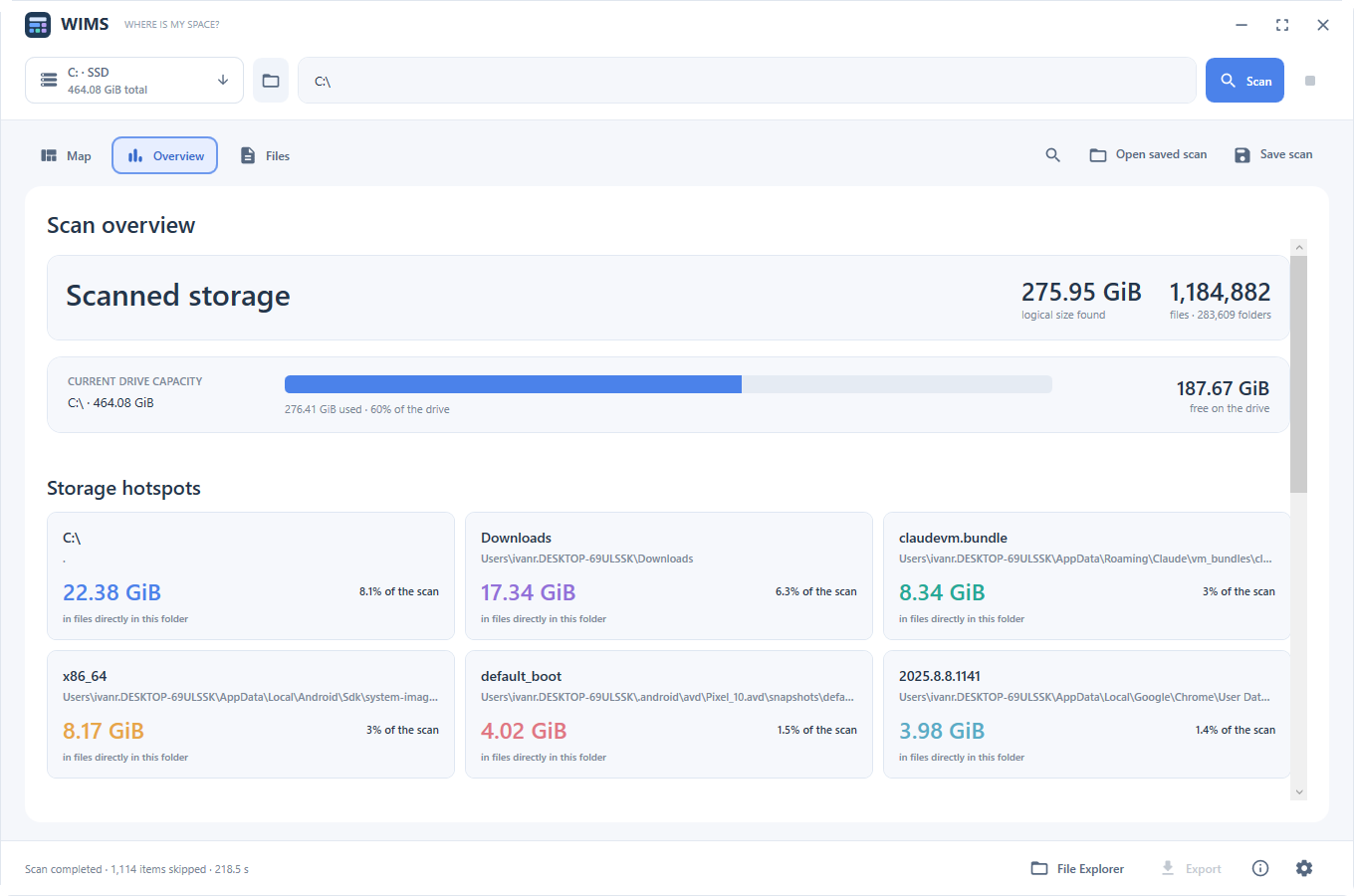
01 / OVERVIEW
The overview brings together scanned size, file and folder counts, and storage hotspots. Used and free drive capacity has its own bar.
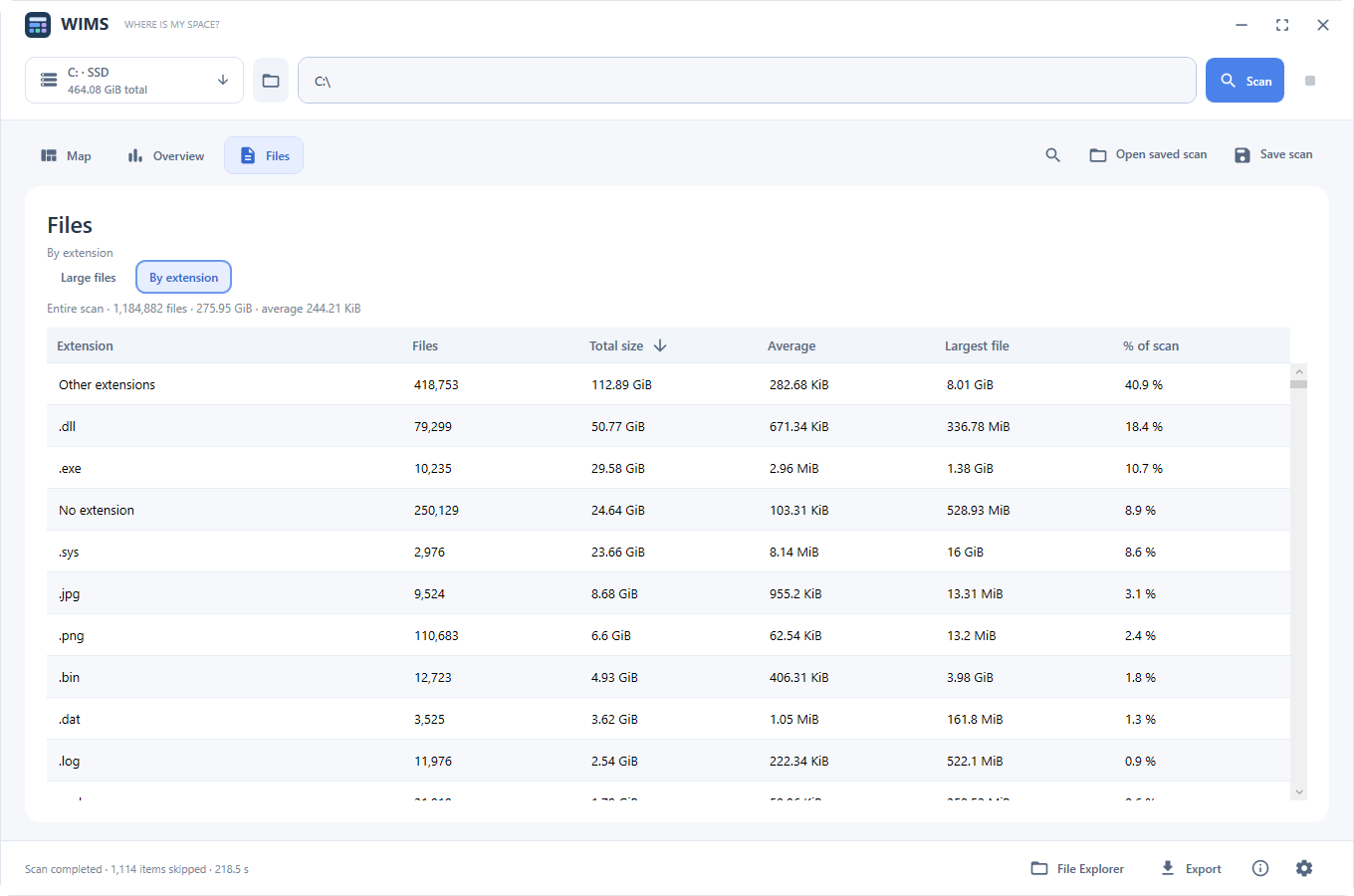
02 / FILES
The extension view groups all files read during the scan. Compare counts, total size, average and largest file to understand what is behind the blocks.
03 / EXPLORE AND DECIDE
Open a folder, explore its map and return to the previous level using the path bar. Zoom with the wheel and pan with the middle mouse button.
Select a drive or folder and click Scan. Choosing a location does not start scanning by itself.
The map updates during scanning. You can pause, resume or cancel; partial results reflect what has been read.
Keep the result in a .wims file. Opening it displays the saved snapshot without scanning the original location again.
No. Scanning is read-only. You choose whether to perform a manual operation; WIMS asks for confirmation before deleting.
Yes, if you previously saved it as a .wims file. It opens in viewing mode and does not allow renaming or deleting items from that snapshot.
The map represents logical sizes of files read during the scan. Used and free capacity reported by Windows is a different measurement. WIMS displays both separately and skips reparse points.
WIMS records skipped items and issues and continues with what it can read. A folder that could not be read is not treated as empty.
Yes. Choose Spanish or English in Settings without restarting or scanning again. The screenshots on this page show the English interface.
Scanning reads names, paths and sizes without opening document contents. You can manually rename or delete items from the app; deletion always requires confirmation.
WIMS displays logical sizes in binary units (KiB, MiB, GiB). Used and free capacity reported by Windows is displayed separately: these measurements may differ.
Results stay in memory until you choose to save or export them. The developer does not receive your scan data.
Read the complete privacy policyStart by seeing where your space goes.
Download on Microsoft Store